|
Initial diagnostics with their own hands will allow the user to avoid the problems described above.
To diagnose the physical condition of the sector space of the problematic media, you can use the program
Fomsoft Data Recovery.
During the scanning procedure, text diagnostic files are created that contain detailed information
about file structures belonging to the selected file system type and physical read failures.
These files can be viewed in any text editor. Analyzing the contents of the found file structures, you can
assess the degree of complexity of the problem and plan further actions to gain access to the necessary
user files and folders.
After the analysis process is completed, the program offers to send a request to the Fomsoft Laboratory
for a free consultation on the situation that has arisen and to receive recommendations for solving problems.
The contents of the diagnostic files allow you to get an exhaustive answer to the following questions:
- How the operating system sees the media as a physical device:
- The size of all media connected to the computer.
- For external and internal hard drives:
- Serial number, hard drive;
- Management Firmware Version (Firmware);
- Name of the model, hard disk;
- Which logical disks are located on this particular physical disk. For each logical disk is displayed:
- File system type, if defined;
- The logical drive letter allocated by the Windows file system;
- Partition capacity in MB;
- The address of the beginning (LBA) of the logical partition on the physical disk.
- Whether there are bad sectors in the sector space and where they are located.
- During the scanning process, the program finds file structures and forms them into diagnostic files.:
- Initial, boot sectors of logical disks (BOOT sectors);
- Records of the main file table (MFT) and its individual records FILE Record;
- Initial sectors of file location tables (FAT);
- Elements of catalog tables of contents.
Looking at the disk selection menu for scanning, the user sees that the disk is not detected by the operating system not because,
that he is physically defective and does not need to be "treated in a clean room", which is really expensive.
In most practical cases, data recovery can be performed with your own hands or remotely by resorting to our
services with us it is much faster, more reliable, safer and cheaper than in the case of accessing services
other data recovery labs.
The program helps end users, without leaving home, to perform a preliminary analysis of the condition
on their own and get a free consultation.
| File name | Structures placed in the file
|
|---|
| FomsoftDiskAnalyzerDEF.txt | Addresses of system files $AttrDef and the date of formatting
of this logical disk. Using the address of this entry, you can reconstruct the directory tree of the corresponding
logical disk (partition).
| | FomsoftDiskAnalyzerSTRING.txt | Отфильтрованные цепочки фрагментов записей Главной файловой таблицы (MFT).
| | FomsoftDiskAnalyzerMINI.txt |
- Initial (BOOT) sectors of logical disks (partitions).
- The first entry of the MFT table, the system file $SRT.
- A copy of the first record of the MFT table, the system file $MFTMirr.
- MFT records describing the system file $AttrDef.
| | FomsoftDiskAnalyzerUSER.txt |
- Initial (BOOT) sectors of logical disks (partitions).
- The first entry of the MFT table, the system file $SRT.
- A copy of the first record of the MFT table, the system file $MFTMirr.
- MFT records describing the system file $AttrDef.
- FILE entries describing files filtered according to the search filter settings.
| | FomsoftDiskAnalyzerMAXI.txt | All elements of file structures detected by the program on the specified disk.
| | FomsoftDiskAnalyzerDISKI.txt | A list of physical and logical disks located on them.
| | FomsoftDiskAnalyzerERROR.txt | A list of addresses of failed sectors and system error codes.
|
If the User does not want to risk valuable data for him, or deal with the problem on his own, he can
consult with the specialists of the data recovery laboratory Fomsoft.
To do this, you need to give the program permission to send a request for consultation to Fomsoft.
The laboratory specialists will perform the analysis and report their conclusion by e-mail about the complexity and possibility of data recovery.
This analysis is performed during the day for free.
Selecting a disk to search for the remaining elements of file structures on it.
After selecting the main menu item, the program displays a list of disk devices and their parameters.
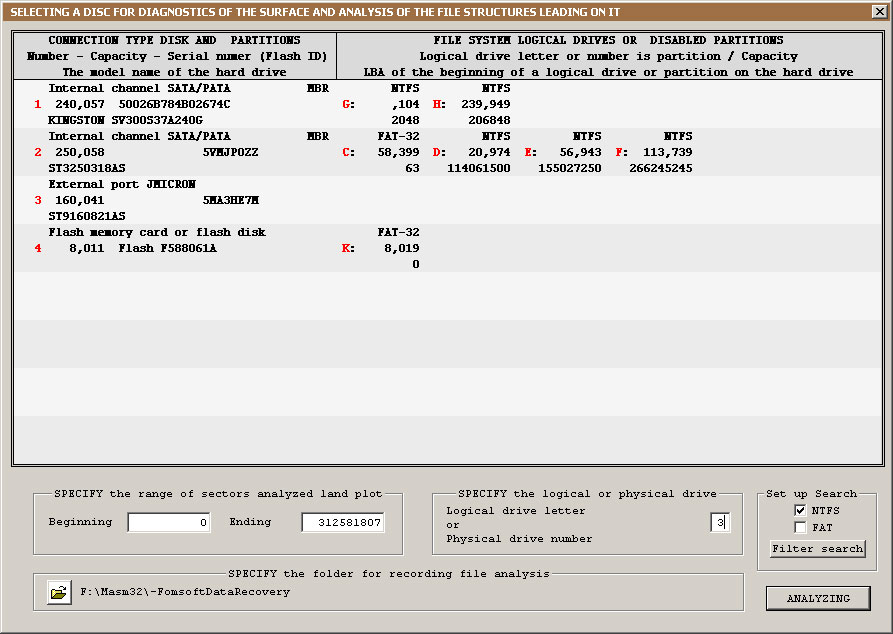
Fig. 39. Disk selection window for analyzing file structures.
To perform an analysis of the presence of file structures, you must specify the program:
- For physical disks - the serial number of the hard drive.
- For logical disks - the letter identifier of the logical disk.
After selecting a disk, the program calculates the addresses of the beginning and end of the analyzed section. The user can set
these parameters at his discretion by specifying his own, but consistent values.
Setting up the search filter.
By clicking the dialog button "Search filter", you can view and refine the parameters for filtering and selecting
file names, information about which is placed in diagnostic files, Fig. 40.
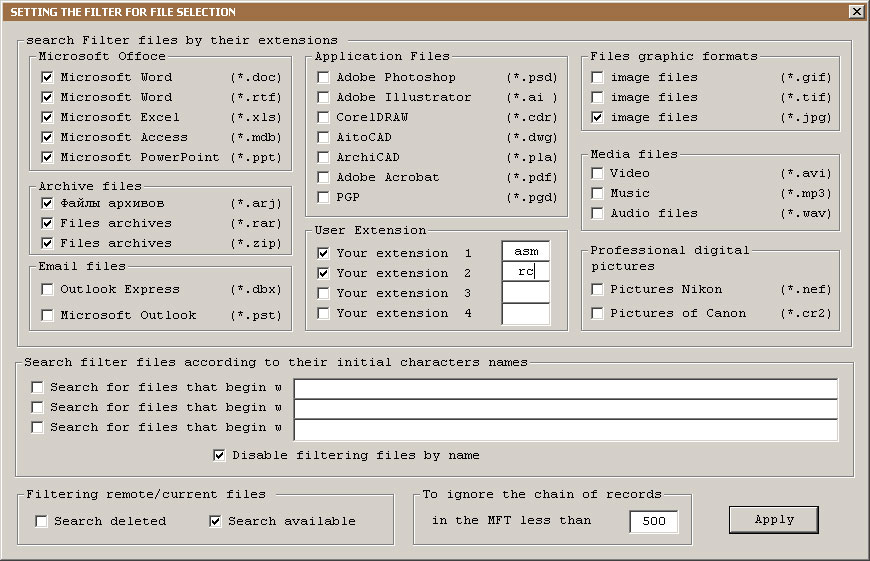
Fig. 40. Setting up the search filter.
The user can change the filtering settings at his discretion:
- Set or uncheck the boxes for files with certain extensions, information about which will be placed
in the analysis file of the analysis Fomsoft Disk Analyzer USER.txt .
- Enable or disable the search for deleted and existing (current) files.
- Enable search for additional custom extensions whose values are set by the user.
- Search for files by templates (beginnings of names).
- Select the file system type.
When writing the fileFomsoftDiskAnalyzerSTRING.txt containing chains of fragments of the Main File Table (MFT),
the minimum size of the FILE Record chain to be registered is set.
If the size of the detected chain is less than the set value, it is ignored.
This parameter is relevant for disks running the Windows 10 operating system, since
auxiliary chains of FILE Record records are created in this file system, duplicating the main records of the MFT table.
Setting a folder for writing data.
By clicking on the symbolic image of the folder (Fig. 39,), you can change the location of the folder where the analysis files will be placed.

Fig. 41. Setting the name of the folder where the analysis files will be recorded.
Displaying the progress of the process of scanning and analyzing file structures.
The progress of the scanning process is displayed on the screen, fig. 42.
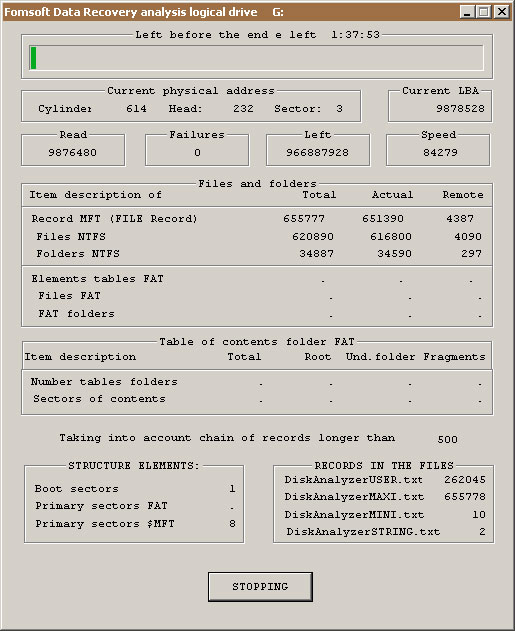
Fig. 42. Displaying the progress of the analysis process.
If a read error occurs when reading from a disk, the program uses a special algorithm, subtracting the bad sectors.
If it is not possible to get rid of the failure, the information about the failure is placed in the diagnostic file
FomsoftDiskAnalyzerERROR.txt and the program proceeds to analyze the contents of the next sector.
In some complex failure cases, a situation arises when the firmware of the hard disk does not have
time to work out the resulting failure situation for the control of a device installed by the driver.
In this case, the operating system fixes a fatal failure of the device, despite the fact that in the end
the disk is ready and the operation is completed, but with an error. However, the operating system considers the situation
fatal and refuses to continue working with the disk.
In the program FomsoftDataRecovery, this situation is successfully handled and it
continues to read subsequent sectors. But there are cases when a problematic disk fatally loses readiness, and withdraw it
from this state, you can only turn off and turn on the power of the drive. In such situations, it is necessary to connect a software
drive via a USB port, it is better, although not necessarily with a separate power source. Considering that in
USB device management drivers, the waiting time for the supply of the head unit is longer, problematic drives very
often have a much smaller number of failures, and sometimes the disk is read without failures at all. Figure 43 shows the program message in
case of loss of readiness of the problematic disk to the USB port.
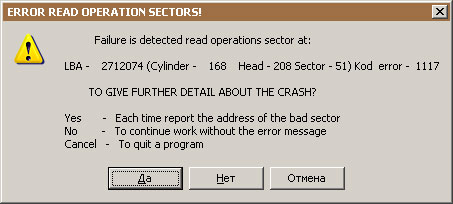
Fig. 43. Loss of readiness by an external disk connected to a USB port.
If there is a loss of readiness by the drive connected to the local SATA or external eSATA ports,
the system usually freezes.
Sending the result for free analysis to the Fomsoft Laboratory.
Upon completion of scanning the problematic media, the resulting message is displayed on the screen, shown in Fig. 44.
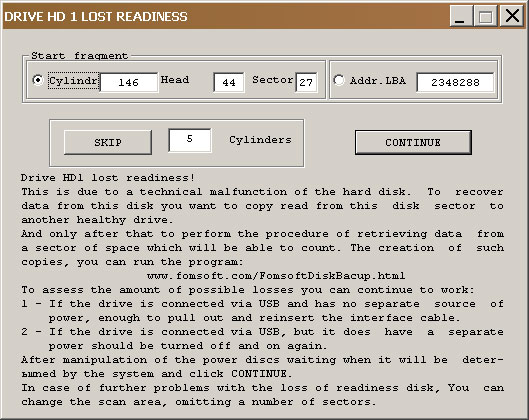
Fig. 44. An example of a completed form for sending the scan result for free analysis to the Fomsoft Laboratory.
If the user clicks on the dialog button [CLOSE WINDOW], the program will finish its work. If the user wishes to receive
a free consultation from Fomsoft Laboratory specialists, as well as recommendations and comments on solving the problems that have arisen, he
must briefly, up to 500 characters, describe the essence of the problem, fill in his name and email address, to which an answer will be sent
within a day.
|