Directory tree reconstruction and file recovery - "Recovery".
In the overwhelming majority of cases of loss of information, nothing fatal happens, and the competent response of users and service
staff allows you to recover problems with their own hands. The biggest challenge is not to take any action
irreversible distortion of the sector space of the problem carrier.
At the same time, we must take care not about what to do, but about what NO NEED TO DO !
he main task is not to take actions that will lead to changes in the data on the media!
This primarily refers to the use of programs that make any adjustments to the sector space and
media repair programs. All these tools are designed to bring the state of the drives to the correct state.
(repair drives), and not to restore user data.
Repairs are performed by destroying parts of the data, among which, with a high degree of probability, the necessary data may be available.
The main advantages of the program Fomsoft Recovery NTFS include:
- Extremely respect for data integrity on problematic media.
In difficult cases, it may not cope with the task of data recovery, but it never worsens (aggravates) the current
media status.
- Having your own access mechanism to the directory tree and existing files, which eliminates access problems
Windows file system in case of physical failures and logical errors in building a binary tree of files and directories.
- The presence of a special adaptive mechanism that handles reading failures sectors of the problem disk.
- Flexible use of Internet technology, allowing the user to perform most of the work with their own hands and
effective use of assistance by Fomsoft Lab specialists.
The Fomsoft Data Recovery program uses its own file system access mechanism. This mechanism does not use functions.
Windows file system. Although the program does not have a high access speed, it does allow access to information when
physical failures of sectors of the sector space of the problem disk and destruction of the logical structure of binary index files.
For a complete reconstruction of the directory tree and data access, the program needs to specify one of the parameters:
- The letter of an existing logical drive;
- The physical address of one of the three elements of the file structure:
- boot sector of the logical sector:
- the beginning of the MFT table;
- records FILE Record.
Data recovery by problem logical drive letter.
In cases when the Windows operating system mounts a logical partition (partition) and assigns it a logical letter
disk, but subsequently cannot get full access to the directory tree and its files,
call the sub-item of the “Recovery” menu - “From the problematic logical disk”, fig. 24

Fig. 24. Recovering from a problem logical drive letter.
Data recovery by formatted drive letter.
n cases where, for one reason or another, a logical disk was accidentally formatted, it is possible to recover data from it that is not covered
new content. To do this, call the sub-item of the “Recovery” menu - “From a formatted disk”, fig. 24a.

Fig. 24a. Data recovery by formatted drive letter.
Query the identifier of the problem disk and filtering parameters.
After activating the functions described above, the dialog box for setting up additional modes and the search filter appears on the screen,
files needed by the user.

Fig. 25. Query the drive letter and filtering parameters.
After setting up additional parameters and filtering search by file extension and clicking the "APPLY" dialog button,
The program selects files in accordance with the search filter settings. The progress of this process is displayed on
the screen, fig. 33.
Recover information from an NTFS virtual logical disk.
If the sector space of a logical disk partition has been distorted or malfunctions have occurred, the operating system cannot
access the corresponding logical disk. In this case, you can call the following function:

Fig. 24b. Recover information from an NTFS virtual logical disk.
Almost all the necessary information to restore a specific NTFS file is concentrated in the record of the MFT file table.
FILE Record.
The only thing still missing is the address of the physical beginning of the logical partition on the media.
To simulate a virtual logical disk, you can specify the physical addresses of the remaining file structures on the disk:
- The address of the boot sector or its copy;
- The starting address of the $MFT table or its copy;
- The address of the file Record from the first fragment of the MFT table
If catastrophic sector space distortion has occurred on the problematic disk and the program cannot
to make the appropriate calculations, the user can independently determine and enter:
- Address of the beginning of the logical partition;
- The cluster size is almost always eight;
- Physical addresses of the beginning and end of chains of fragments of the MFT table;
Fig. 24c shows a fragment of the completed dialog after activating the simulation menu item.:

Fig. 24c. Set the parameters of the NTFS virtual logical disk.
By pressing the "RESTART RECONSTRUCTION" dialog button, the program independently calculates the remaining parameters required for reconstruction
and displays a dialog for requesting filtering parameters, Fig. R24f:

Fig. 24f. set the file filtering parameters for the NTFS virtual disk.
Restoration based on the results of the previous reconstruction.
During the reconstruction of the directory tree of the problematic disk, the program generates a log file FomsoftDataRecoverySave.bin,
which is placed in the folder from where the program was launched.
This file contains all the data about the reconstructed directory tree of the problem disk. You can save it in another place
or transfer it to specialists for consultation. In order not to waste time on reconstruction, you can call
the submenu item "based on the results of the previous reconstruction", Fig. 24d:

Fig. 24d. Restoration based on the results of the previous reconstruction.
After activating this sub-item, the program considers the previously saved log file FomsoftDataRecoverySave.bin,
checks for the presence of a problem disk on the computer. If no problem disk is found, the program displays
a corresponding message on the screen, Fig. 24e:

Fig. 24efprevious reconstruction.. The problematic disk was not found, only viewing is possible.
Next, the program reconstructs the directory tree.
Trial recovery of files from 1 to 64 KB.
After the process of searching and selecting the necessary files is completed, the reconstructed directory tree is displayed on the screen.
In fig. 34 shows the image of the free version of the program.

Fig. 34. Reconstructed directory tree.
The image output format for the licensed version remains the same, but instead of the dialog button
"[REQUEST LICENSE PROGRAM]]", the button "[RECOVE MARKED FILES]" is displayed.
The generated tree is displayed in two columns, the first one contains the actual directory tree, and the second one displays the list
subdirectories and a list of files contained in the selected directory. The display list consists of eleven columns.
presented in the table below:
| № | The displayed value in the column | Note
|
|---|
| 1 | Folder or file name
|
|
|---|
| 2 | File size in bytes
| This field is empty for the folder
|
|---|
| 3 | ate and time of creation
|
|
|---|
| 4 | Modification date and time
|
|
|---|
| 5 | Expansion
| Three character DOS extension
|
|---|
| 6 | Sign of deleted item
| Contains the text "Deleted" for deleted files or folders
|
|---|
| 7 | Contains the text "Deleted" for deleted files or folders
| Used for debugging, the size is set to zero.
|
|---|
| 8 | FIRE Record Number in MFT Table
|
|
|---|
| 9 | LBA sector records FIRE Record in the MFT table
| This is the address of the physical sector on the disk
|
|---|
| 10 | LBA address of the beginning of the data file on disk
| The physical address of the beginning of the first piece of data file
|
|---|
| 11 | Number of file fragments
|
|
|---|
To control the correctness of the recovery result found by Fomsoft Data Recovery,
Before you use the commercial recovery of all found files, the user can perform free
trial recovery of some part of files.
The user can check or uncheck the box next to the name of the file or folder, as well as dialog buttons
[Select All] and [Redeem All], thus noting the files of interest. After clicking the dialog button
[TRIAL EXTRACT] The program will extract the selected files to verify the recovery.
Marked files and making a decision to restore all the found information. At the same time, the program reports that
trial recovery will be performed only for non-fragmented files from 1 to 64 KB in length, fig. 35.

Fig. 35. Warning about trial restore files.
After clicking the dialog button [Yes], the program will ask you to specify the location of the folder for recording
extracted files.
Having checked the result of the trial recovery of information, the user can decide on his further actions..
Restore all found folders and files.
In the case of using the licensed version, the user can click the [RESTORE MARKED FILES] dialog button.
In this case, the program will transfer to the Fomsoft Lab's server the serial number of the hard disk from which you need to recover
files. If the serial number of this disk is not in the list of licensed disks, the program will ask the user to confirm
licensing of this disk, fig. 36
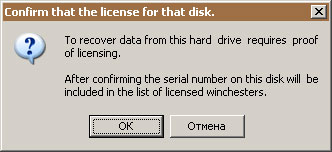 Fig. 36. Free License Usage Request.
If the serial number of this hard drive is in the list of licensed disks, the program will ask you to specify a local or
network drive, where and write the marked files and folders.
If you use the free version of Fomsoft Data Recovery , the user can
give the program a command to send the request for making the Licensed Instance to Fomsoft Laboratory by pressing the dialog button
[REQUEST FOR LICENSE PROGRAM].
In this case, the user gets the opportunity to use the Licensed version of the program on several media, regardless of the breakdown
on logical drives.
The cost of licensing a single disk is significantly reduced from the ordered amount of serviced media.
Order a licensed version of the data recovery program Fomsoft Data Recovery.
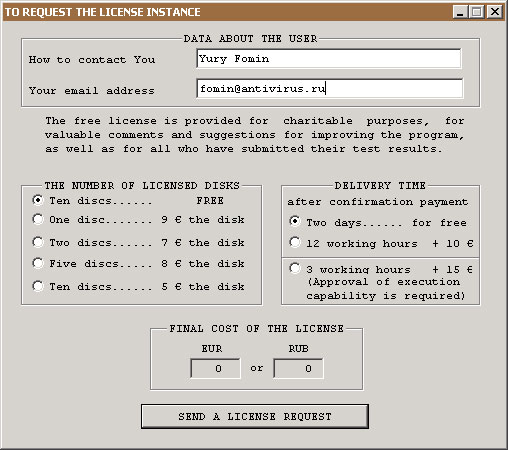 Fig. 37. Order to purchase a license for the program Fomsoft Data Recovery.
Four license options are available:
| № | Number of carriers | Cost per media | Total cost
|
|---|
| 1 | 1 | 9 euro | 9 euro
|
|---|
| 2 | 2 | 8 euro | 16 euro
|
|---|
| 3 | 5 | 7 euro | 35 euro
|
|---|
| 3 | 10 | 5 euro | 50 euro
|
|---|
The delivery time of the Licensed Instance of Fomsoft Data Recovery by default is
no more than 24 hours (two days).
If the User wants to speed up the delivery process, he may additionally pay:
- $10 or 600 rubles. Delivery speed no more than 12 working hours.
- $15 or 900 rubles. Delivery time no more than three business hours.
At the same time, it is necessary to agree on the technical feasibility of the execution of the Order.
After receiving the Order, the Fomsoft Lab server automatically sends to the specified email address
Customer letter with a request to confirm the need to fulfill the Order. If confirmation is not received,
Order is ignored.
Восстановление по данным файла с фрагментами таблицы MFT.
Программа позволяет восстановить интересующий пользователя файл, указав ей физический диск, начальный адрес данных файла,
а также число секторов или конкретный адрес сектора конца данных. Для этого надо вызвать подпункт меню
"Восстановление" - "Запись секторов диска в файл", рис. 38.
 Рис. 38. Восстановление по данным файла с фрагментами таблицы MFT.
После вызова этого меню на экране появляется диалоговое меню ввода соответствующих параметров, представленное на рис. 38a.
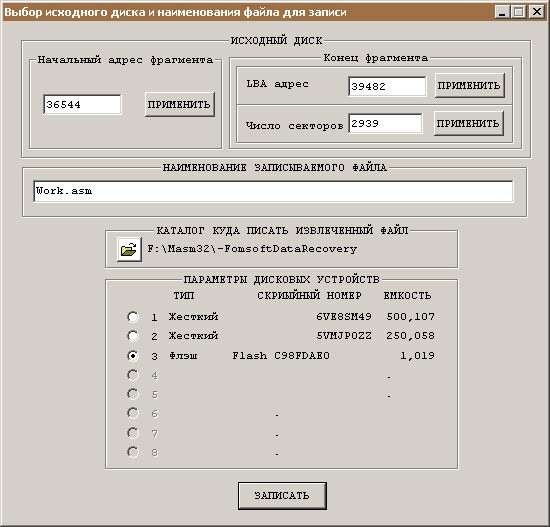 Рис. 38a. Диалоговое окно ввода параметров восстанавливаемого файла.
Конкретное значение параметров можно взять из реконструированного дерева каталогов (рис. 34). На рис. 38b представлен фрагмент
реконструированного дерева каталогов, описывающий 5 файлов исходного кода. Опираясь на эти данные, можно без труда восстановить
4 файла. На рис. 38а указаны параметры для извлечения данных первого файла:
| № | Параметр | Значение параметра | Примечание
|
|---|
| 1 | Наименование восстанавливаемого файла | DataRecoveryDSP.asm |
|
|---|
| 2 | Начальный адрес фрагмента на диске | 36544 |
|
|---|
| 3 | Конец фрагмента или число секторов | 2938 | Расчетная величина, длина файла/512,
округленная до целого значения с избытком
|
|---|
| 4 | НАММЕНОВАНИЕ ФАЙЛА | Wirk.asm | Наименование записываемого файла
|
|---|
| 4 | ТЕКУЩИЙ КАКТАЛОГ | F:|Masm32\-FomsoftDataRecovery |
|
|---|
| 4 | Идентификатор диска | HD2 |
|
|---|
 Рис. 38b. Фрагмент реконструированного дерева каталогов.
|