|
Copying fragments from one disk to another
When activating the exchange point of the program Fomsoft Data Recovery
"Copying fragments from one disk to another." appears on the screen
the drop-down menu shown in Fig. E45.
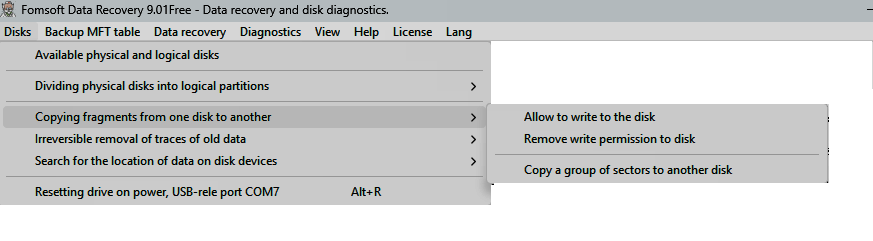
Рис. E45. Copying fragments from one disk to another.
The drop-down menu of the "Cloning" item in the main window consists of three sub-items:
- Set the disk write permission.
- Remove disk write permission.
- Copy a group of sectors to another healthy disk.
Set the disk write permission.
To prevent accidental writing to discs due to carelessness, the disc to be recorded must be
marked in a special way. The LBA - 62 sector is used as a marker. To set such a mark, you need to activate the menu sub
-item "Cloning" "Set the write permission to disk", fig. 46:
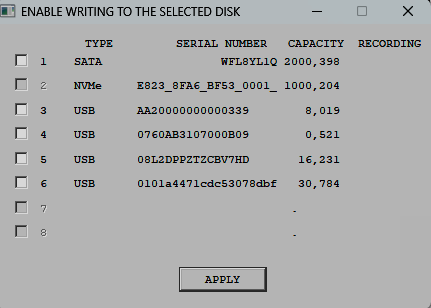
fIG. 46. «Set the write permission to disk».
In most cases, this sector is not used by the operating system and contains a zero value. However, if this sector is not
zero, the program issues a corresponding warning, Fig. 46a:
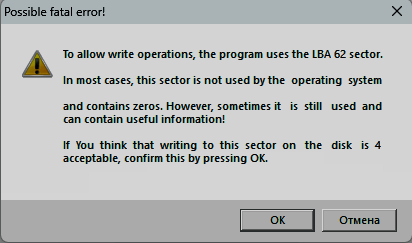
Fig. 46a. A fatal error is possible.
Delete permission to write to disk.
In order to prohibit the program Fomsoft Data Recovery from writing to one or another disk, you need to call the submenu:
"УDelete permission to write to disk", рис. 46b:
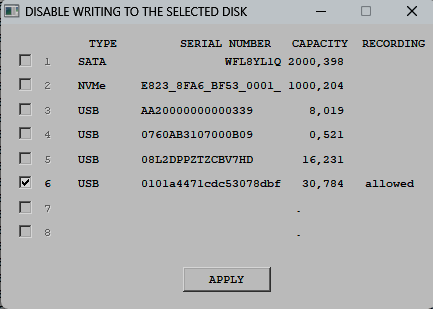
Fig. 46b. Sub-item "Delete permission to write to disk».
Copy a group of sectors to another healthy disk.
Figure 47 shows an example of instructing the Fomsoft Data Recovery program to copy the sector space of the logical
disk "D:" to physical disk No. 3 starting at offset 63.
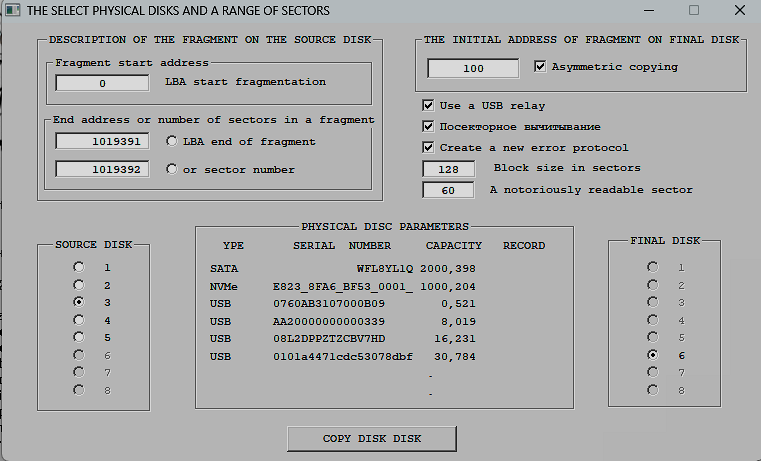
Fig. 47. Copy a group of sectors to another healthy disk.
By checking the box "Asymmetric copying", you can specify the LBA from which the copied
sector group will be placed on the output disk.
The user can change the default parameter values:
- The length of the read-write block;
- The address of the obviously readable sector used to monitor the availability of the problematic disk.
The progress of the copying process is displayed on the screen, fig. 47a:
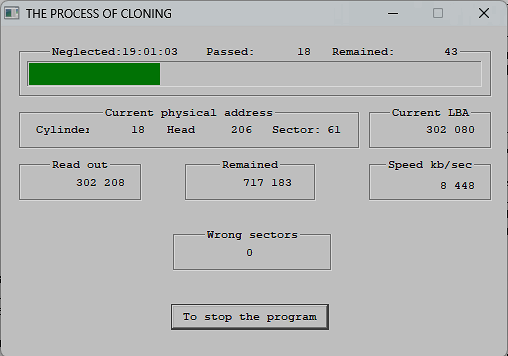
Рис. 47a. Displaying the progress of the copying process.
The cloning process ends with the output of the corresponding message, Fig. 47
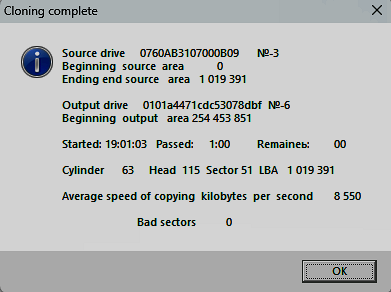
Рис. 47b. A message about the completion of cloning of a specified section of disk.
If reading errors occur while reading the sector space of the source disk, the program uses original algorithms
that subtract errors in reading unreadable sectors and loss of availability by the problematic drive.
|